Import Budget
Overview
The Import Budget feature allows you to upload your annual PTO budget from a CSV file and apply it directly to your Chart of Accounts for a selected budget year.
This is especially useful when migrating from spreadsheets or when preparing a new fiscal year budget.
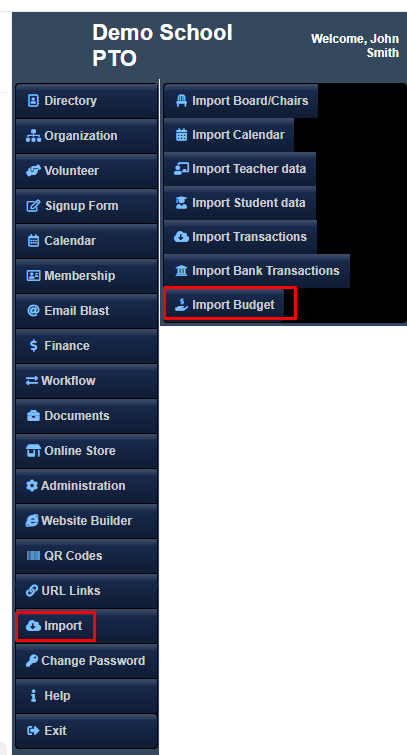
Overview of the Import Flow
- Prepare your budget in a CSV file
- Upload the file and select the budget year
- Review imported rows in a staging grid
- Import the budget into the system
- Review the import process log
- View the final budget report
Each step is explained below.
Step 1: Prepare the CSV File
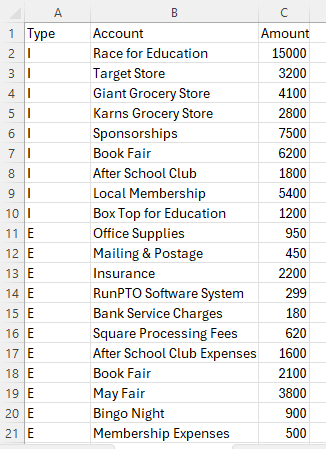
Your CSV file must follow this exact format:
Required Columns (in order)
| Column | Description |
|---|---|
| Type | I for Income, E for Expense |
| Account | Account name exactly as it appears in your Chart of Accounts |
| Amount | Budget amount (numbers only, no commas required) |
Example CSV
Type,Account,Amount
I,Race for Education,15000
I,Target Store,3200
I,Giant Grocery Store,4100
E,Office Supplies,950
E,Insurance,2200
⚠️ Important Notes
- Account names must match your Chart of Accounts exactly
- Use
Ifor Income andEfor Expense - Do not include totals or blank rows
Step 2: Upload the CSV File
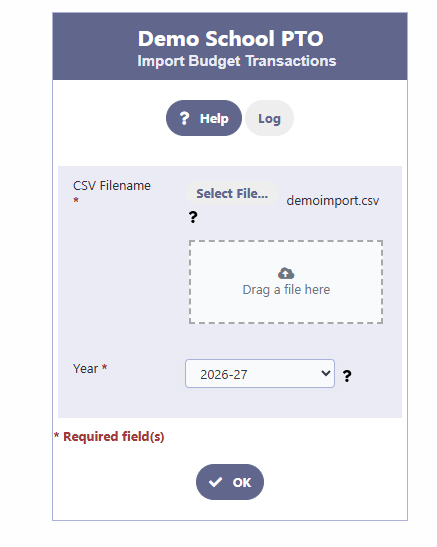
Navigate to:
Import → Import Budget
- Click Select File and choose your CSV file
- Select the Budget Year (e.g., 2026–27)
- Click OK
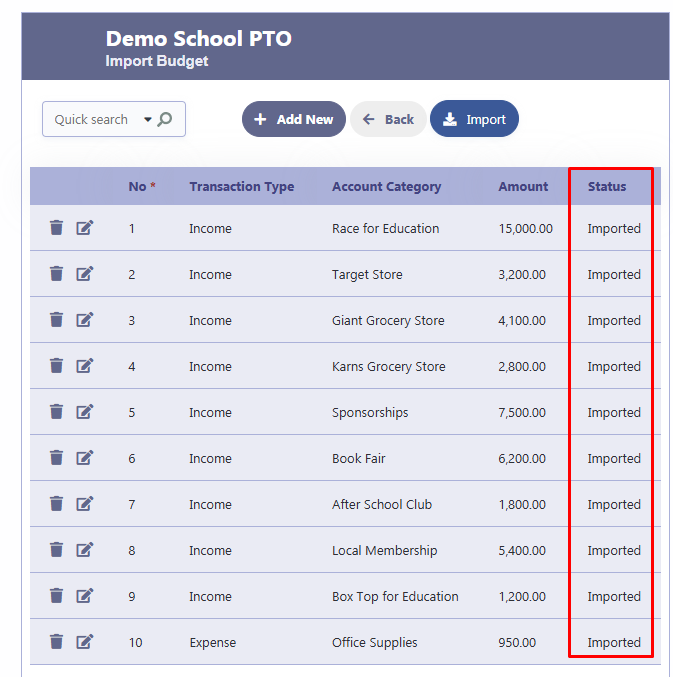
Step 3: Review the Imported Staging Grid
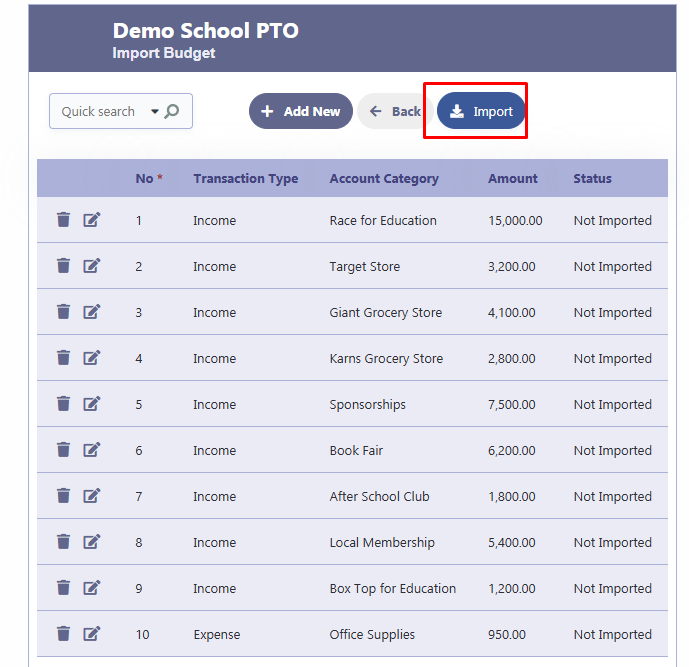
After upload, the system displays the imported rows in a staging grid.
What you can do here:
- Review all Income and Expense lines
- Edit individual rows if needed
- Delete rows you do not want imported
- Confirm amounts and account categories
At this stage, all rows will show a status of Not Imported.
Step 4: Import the Budget
When ready, click the Import button.
The system will:
- Insert the budget amounts into the selected budget year
- Automatically update existing budget amounts if they already exist
- Mark each staging row as Imported
Step 5: View the Import Log
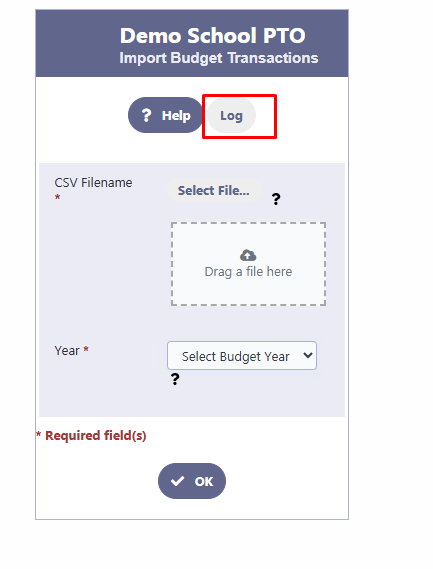
To review what happened during the import, click Log on the Import Budget screen.
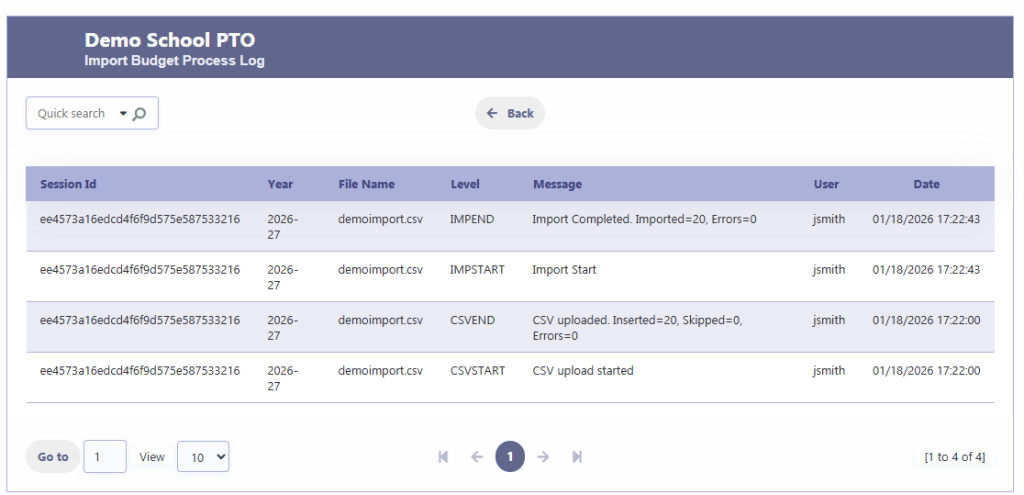
The log shows:
- Import session ID
- Budget year
- File name
- Process steps (CSVSTART, CSVEND, IMPSTART, IMPEND)
- Errors or warnings (if any)
- User who performed the import
- Date and time
This log provides a full audit trail of the import process.
Step 6: Review the Final Budget
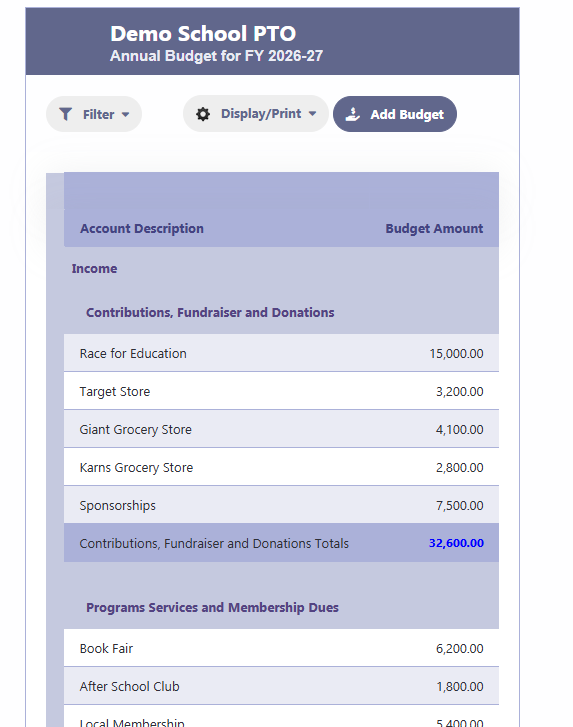
Once imported, navigate to:
Finance → Budget
You will see:
- Income and Expense accounts grouped correctly
- Totals calculated automatically
- The full annual budget for the selected fiscal year
Common Errors and How to Fix Them
Below are the most common errors you may see in the Import Budget Process Log, along with the cause and the fix.
❌ Unable to open file
Log message: Unable to open file: <path>
Cause:
RunPTO could not locate or access the uploaded CSV file (file missing, wrong path, or permission issue).
Fix:
- Re-upload the CSV and try again.
- Confirm the file selected is the correct one.
❌ Invalid CSV header
Log message: Invalid CSV header. First column must be Type.
Cause:
The first row (header) is not in the expected format. The first column must be labeled Type.
Fix:
Update the header row to match the required format exactly:
Type,Account,Amount
Then save and re-upload the file.
❌ Invalid Type value
Log message: Invalid type value: <value>
Cause:
The Type column contains an unsupported value. RunPTO only accepts:
I= IncomeE= Expense
Fix:
Correct the Type value in the CSV to either I or E, then re-upload.
❌ Missing account name
Log message: Missing account name
Cause:
The Account column is blank for one or more rows.
Fix:
Enter a valid account name in the Account column for that row and re-upload the CSV.
❌ Account does not exist
Log message: Account "<name>" does not exist
Cause:
The account name in the CSV does not match an existing account in your Chart of Accounts.
Fix:
- Verify the spelling, spacing, and punctuation in the Account name.
- Make sure the account exists in Finance → Chart of Accounts.
- If needed, add the missing account first, then re-upload the CSV.
❌ Invalid amount
Log message: Invalid amount: <value>
Cause:
The Amount value is missing or not a valid number.
Fix:
- Ensure the amount is numeric (example:
1500or1500.00). - Remove any text or invalid characters.
- If using symbols like
$or commas, confirm the remaining value is still a valid number before re-uploading.
Best Practices
- Always review the staging grid before importing
- Keep a copy of your CSV file for reference
- Use a new filename if re-importing updated data
- Check the Import Log for confirmation and auditing
Summary
The Import Budget feature provides:
- A safe staging process
- Detailed import logs
- A fast way to build annual budgets from spreadsheets
.