How do I track inventory by product, size, color, or size and color?
RunPTO allows you to control how inventory is tracked for each product in the Online Store.
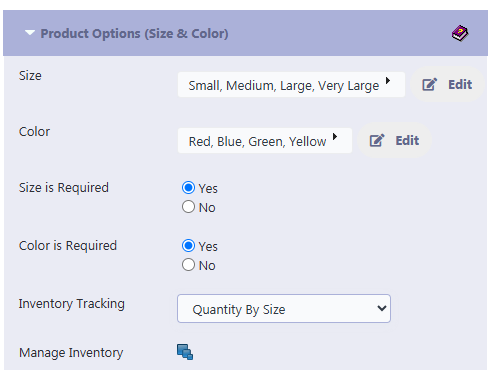
When editing a product, use the Inventory Tracking field to choose how quantities should be managed.
Available options are:
- Product Quantity – Tracks one overall quantity for the product.
- Quantity By Size – Tracks a separate quantity for each Size option.
- Quantity By Color – Tracks a separate quantity for each Color option.
- Quantity By Size & Color – Tracks inventory separately for each Size and Color combination.
For example, if you are selling a T-shirt, you may want to track inventory by Size:
Small        50
Medium      100
Large       250
Very Large  150
Or, if both Size and Color affect availability, you can track combinations such as:
Small / Red
Small / Blue
Medium / Red
Medium / Blue
Large / Red
Large / Blue
How do I set up Size or Color inventory?
First, assign the appropriate Size and/or Color options to the product.
Then select the appropriate option under Inventory Tracking.
If you change the Inventory Tracking setting, save the product before clicking Manage Inventory.
The Manage Inventory screen uses the saved Inventory Tracking setting to determine which inventory fields to display.
For example:
- Quantity By Size displays Size inventory.
- Quantity By Color displays Color inventory.
- Quantity By Size & Color displays both Size and Color combinations.
What is Manage Inventory?
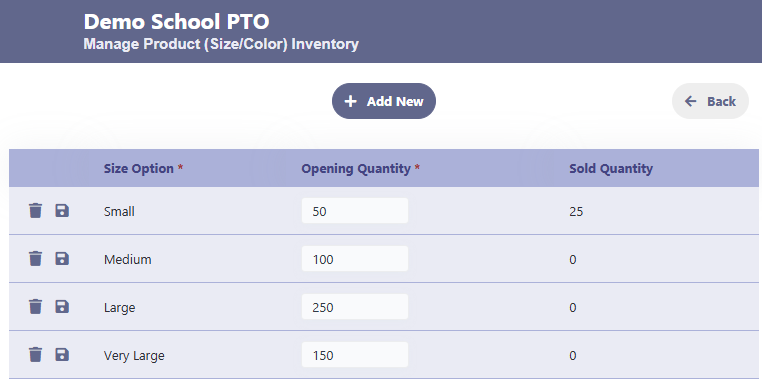
The Manage Inventory option allows you to enter the Opening Quantity for each Size, Color, or Size/Color combination.
For Quantity By Size, you may see:
| Size | Opening Quantity | Sold Quantity |
|---|---|---|
| Small | 50 | 0 |
| Medium | 100 | 0 |
| Large | 250 | 0 |
| Very Large | 150 | 0 |
The Opening Quantity is the number of items initially available.
The Sold Quantity is automatically updated as customers complete purchases through the Online Store.
What happens when inventory runs low?
RunPTO checks the available inventory during checkout.
For example, if there are only 5 Medium shirts remaining and a customer attempts to purchase 8, checkout will display a message similar to:
PTA T-Shirt – Size Medium: only 5 available. You selected 8.
The customer must reduce the quantity before proceeding.
If no inventory remains, RunPTO will indicate that the selected product or option is out of stock.
What happens when Product Quantity is selected?
When Product Quantity is selected, inventory is managed using the regular Opening Quantity and Sold Quantity fields on the Product form.
The Manage Inventory screen is not required.
For example:
Opening Quantity: 500
Sold Quantity:     125
Remaining:         375
Important
After changing the Inventory Tracking setting, always save the Product before selecting Manage Inventory.
This ensures that RunPTO loads the correct Size, Color, or Size/Color inventory configuration.